
Process of Applying for a Digital Signature Certificate (DSC)
Applying for a Digital Signature Certificate (DSC) with DSC Apply Company is simple, secure, and fully online. Just follow these easy steps 👇
Step 1: Start Your DSC Application
Click the button below to access our online application form and begin the DSC registration process.
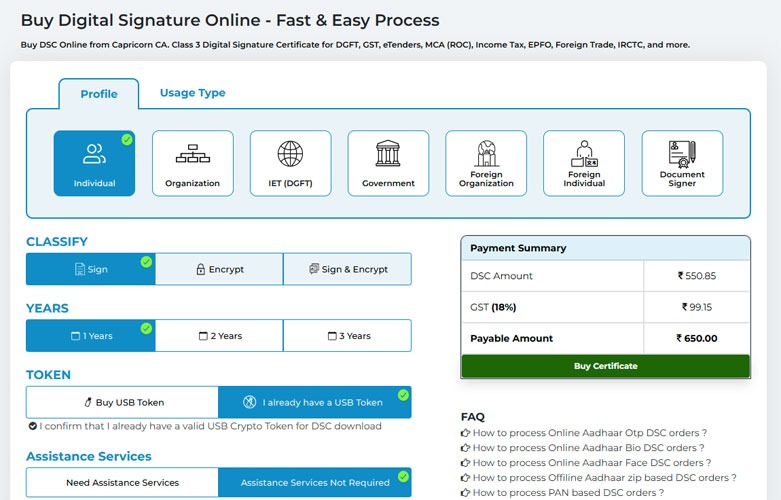
Step 2: Select Your DSC Options
Now you are on the application page. Please select the required options to proceed with your Digital Signature Certificate application:
- Select Certificate Type: Choose Signing, Encryption, or Sign & Encryption (Combo)
- Select Certificate Validity: Choose 1 Year, 2 Years, or 3 Years
- Select USB Token Option: Choose Buy USB Token or I already have a USB Token
- Select Assistance Service: Choose Assistance Not Required
After selecting all options, click the Buy Certificate button to continue.
Step 3: Fill Your Personal Details
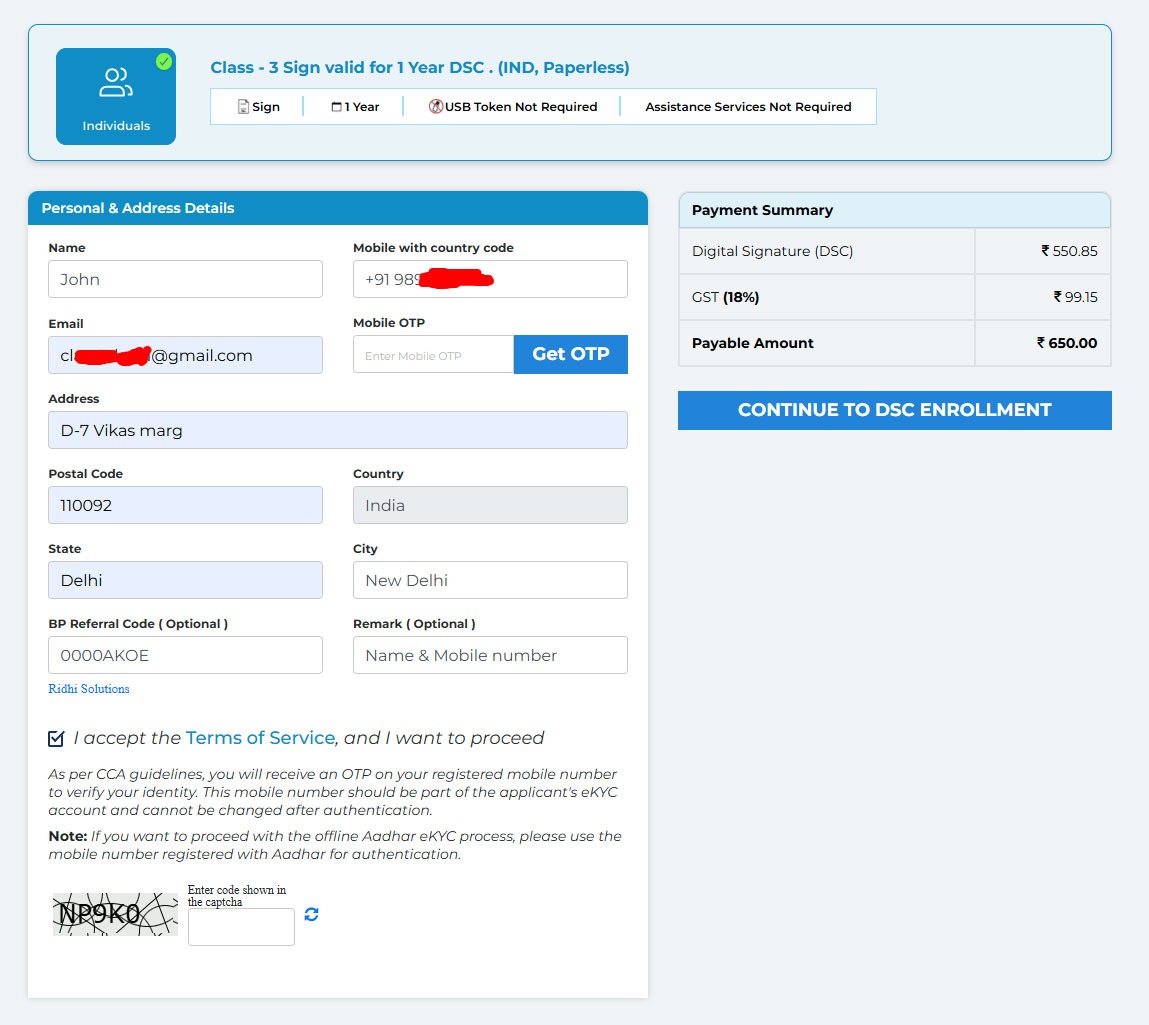
After clicking the Buy Certificate button, you will be redirected to the next page. Here, you need to fill in your personal details to continue the DSC application process.
Please complete the following fields:
- Name: Enter your full name
- Mobile Number: Enter your mobile number with country code (for example: +91XXXXXXXXXX)
Click Send OTP and enter the OTP received on your mobile number for verification - Email: Enter your valid email address
- Address: Enter your complete address
- Remark: Enter your name and mobile number in this format:
Example: John – +91 9XX1352XXX - BP Referral Code: This field is already filled by default, so no need to change it
- Accept the Terms of Service by checking the box
- Enter the Captcha code shown on the screen
After filling and verifying all details, click the Continue to DSC Enrollment button to proceed to the next step.
Step 4: Proceed with Aadhaar OTP Verification
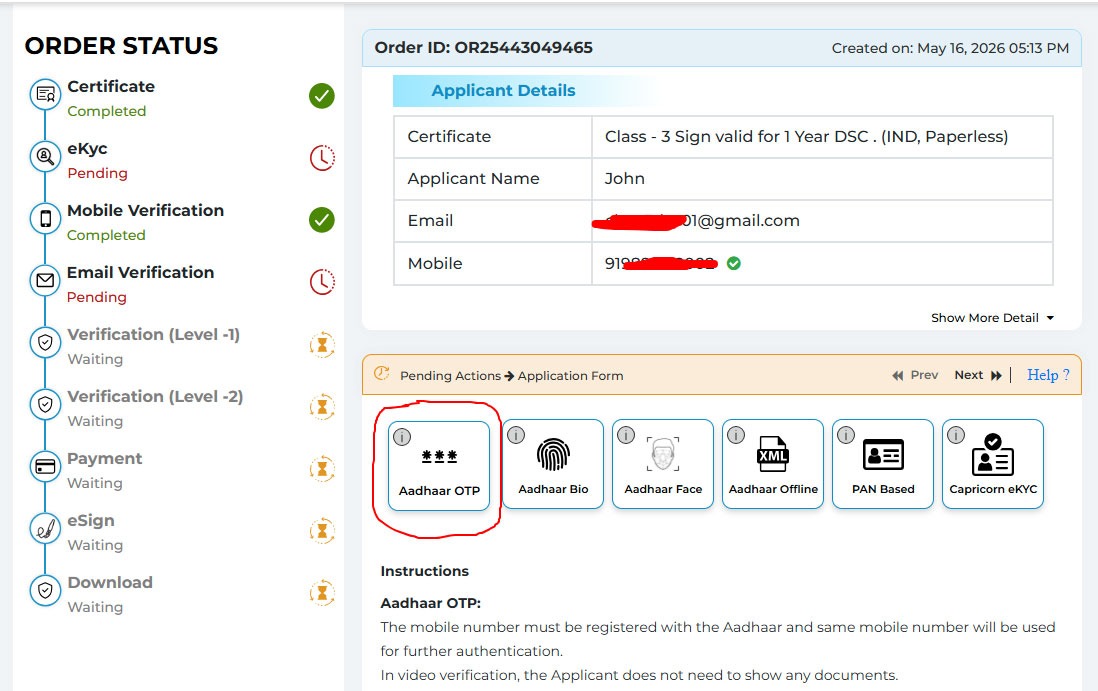
After clicking Continue to DSC Enrollment, you will be redirected to the application process page.
On this page, you will see different verification options for completing your DSC application.
Please follow this step:
- Click on Aadhaar OTP to proceed with your identity verification process
- Make sure the mobile number linked to your Aadhaar card is active, as you will receive an OTP on that number
- The same Aadhaar-linked mobile number will be used for further verification during the application process
Once you click Aadhaar OTP, the next verification page will open and you can continue the DSC application process.
Step 5: Complete Aadhaar OTP Verification
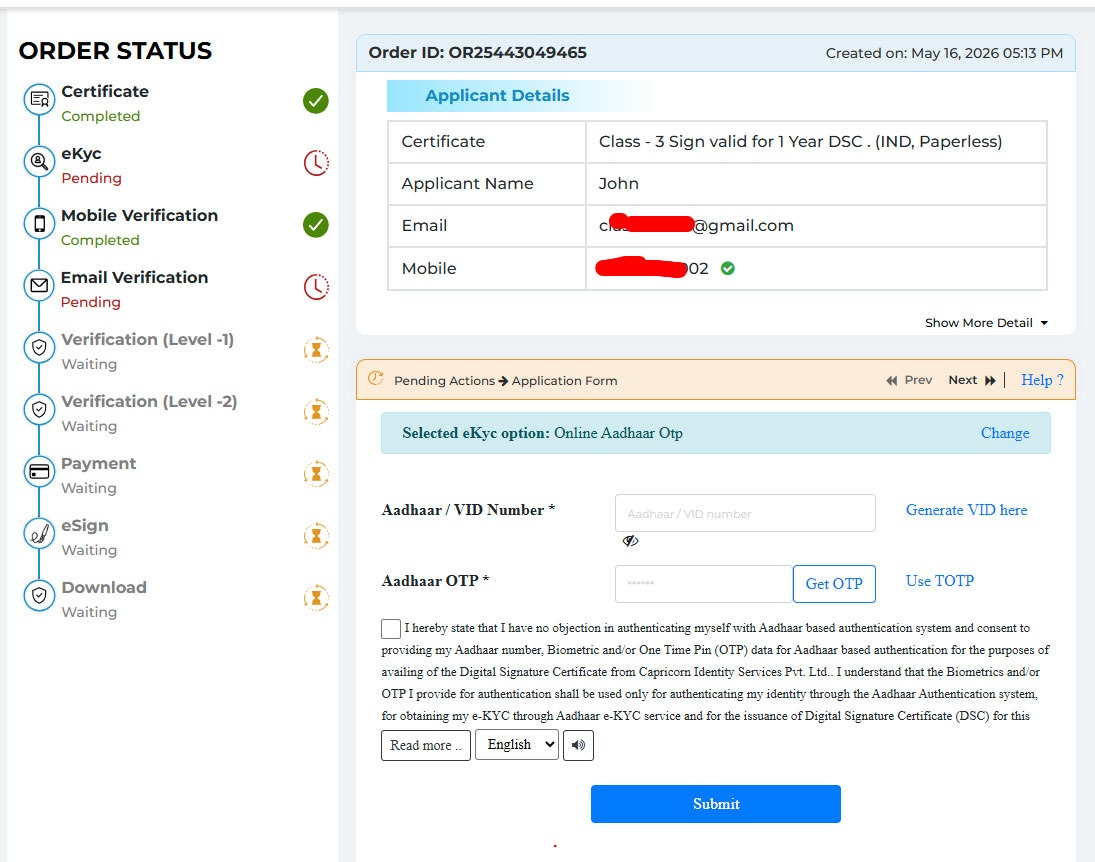
On this page, please follow these steps to continue your DSC application:
- Enter your Aadhaar Number in the Aadhaar / VID Number field
- Click on Get OTP to receive the OTP on your Aadhaar-linked mobile number
- Enter the received OTP in the Aadhaar OTP field
- Tick the consent checkbox to accept the Aadhaar authentication declaration
- After filling all details, click the Submit button to proceed to the next step.
Step 6: Record Your Video Verification
After clicking the Submit button, your Aadhaar verification will be completed successfully.
Now you will be redirected to the video verification page.
Please follow these steps:
- Click on Record Video (or Record Video Again) button
- Read the script shown on your screen carefully
- While recording, clearly speak your full name and the video code shown on the screen
- Make sure your face is clearly visible and your voice is clear during the recording
After completing the video recording, submit it and wait for approval of your DSC application.
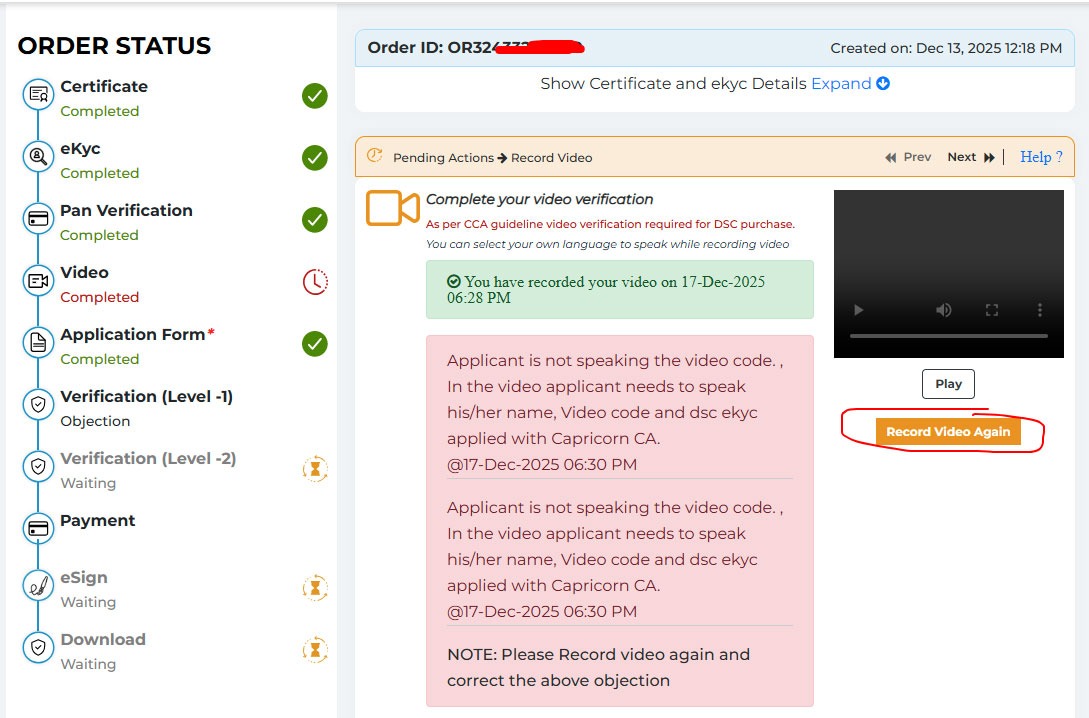
Step 7: Wait for Approval and Complete Payment
After submitting your video verification, please wait for the application approval.
Once your application is approved:
- You will receive the approval update on the application portal
- Complete the payment process to proceed with DSC issuance
Step 8: Contact Support for DSC Download
After completing the payment, contact our support team. They will help you download and install your Digital Signature Certificate.
Support Contact:
📞 +91 9891352002
Need Help?
If you face any problem during the DSC application process or have any queries, feel free to contact us:
📞 Call / WhatsApp: +91-9891352002, +91-7827423405
📧 Email: dsc@dscapply.com
